AIRPLANEINWEB / PRACTICE
Flight practice notes
Knowing a key binding is different from reading the aircraft’s response. These three comparisons follow the first-flight walkthrough. Change one input at a time and observe it at 1× with a consistent camera.
Start with a useful baseline
Use the first-flight guide to select an airport and begin. Let Auto take off and gain separation from the ground before practising. Do not start these exercises on the runway or during an approach.
Set playback to 1× and keep the same camera. An outside view that shows both the aircraft and the horizon is useful initially. Flight-control keys disengage Auto, so check its button before and after each comparison.
The top-left kt value is the simulator’s speed readout; ft is its altitude readout, not clearance above the terrain underneath. Use the destination distance in km and the route map as separate clues to movement.
The keyboard exercises below are for a PC. Touch users should read the mobile-controls guide first. Press P to pause when the controls become confusing. After switching tabs, check whether the flight is still paused.
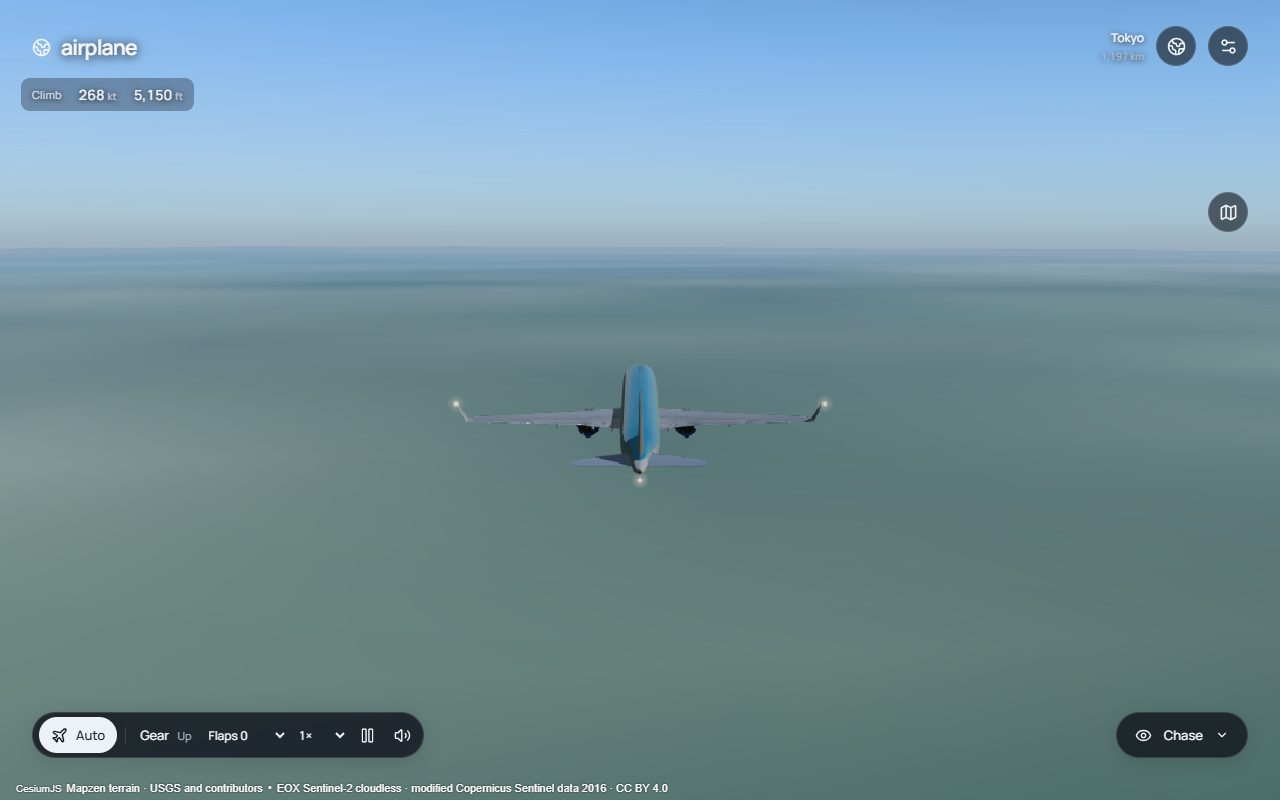
01 · Raise the nose, then release
Separate the end of your key press from the aircraft’s ongoing rotation and altitude change.
Try it
- When ready to take over, briefly press ↓ or S, then release it completely. Watch the nose relative to the horizon without changing the camera.
- Do not immediately alternate several keys. Observe continuing rotation separately from the change in the altitude readout.
- When needed, briefly press ↑ or W and compare the opposite response. Leave throttle, flaps and gear unchanged during this comparison.
What to observe
A control input is not an instant attitude lock. This app models elevator motion and pitch momentum: releasing or reversing an input need not reverse the motion immediately. A raised nose and an increasing altitude reading are also different observations, not a guaranteed simultaneous result.
Check your understanding: Does releasing the key instantly lock both pitch and altitude?
No. Releasing the input does not erase rotation or hold altitude. Read the change in attitude, altitude and speed separately.
02 · Make a gentle turn and compare
Distinguish camera movement, aircraft bank and direction on the map.
Try it
- Keep 1× playback and the same camera. Briefly press ←/A or →/D for a small bank. Do not hold one direction continuously.
- Release the input and compare the aircraft’s bank with its changing direction on the route map. Check the altitude against the earlier reading too.
- Briefly use the opposite key to reduce the bank, without expecting an instant return to level. Repeat in the other direction.
What to observe
The app rotates the lift direction with bank, so altitude changes can accompany a turn. Releasing a key and returning to level are not the same operation. The map shows the current journey and destination; it does not provide real air-traffic-control clearances or approved airways.
Check your understanding: Does losing altitude prove that the terrain data is wrong?
No. Compare bank and speed as well. A terrain report should separately record the airport, view and whether the aircraft actually intersects the visible ground.
03 · Separate playback from real time
Understand why the same brief input can feel different at higher playback rates.
Try it
- Stop manual inputs and check the Auto state. At 1×, observe the destination distance and movement on the map.
- Increase playback by one step and compare progress without adding manual input. The purpose is to distinguish flight progress from elapsed real time.
- Return to 1× before taking manual control. Try the window view separately during a stable part of the journey.
What to observe
Playback does not merely move the aircraft farther per step. It advances the same flight steps faster, so turns and climbs progress faster too. Day and night use real UTC separately. Hiding the tab pauses the flight; check the pause state when you return.
Check your understanding: Does 100× playback make the real day/night cycle run 100 times faster?
No. Flight progress and real UTC are separate here. Playback speed also says nothing about whether imagery or weather information is live.
What these exercises cannot establish
These notes teach implemented AirplaneInWeb behaviour. They are not real aircraft operating procedures, certified training or an A320 performance reference. They do not prescribe fixed takeoff or landing speeds or promise a successful arrival.
Auto is not a real pilot. Terrain readiness, approach geometry and aircraft state can lead to holds or another approach. Successful external-data loading and a completed landing are separate things to verify.
For a useful bug report, record the departure airport, device and browser, playback rate, Auto state, input and expected result. Do not include personal information or account tokens.